Drop in your image
Choose a photo with a clear subject. Portraits, products and everyday objects are a good place to start.
A little less background. A lot more possibility.
Give your product, portrait or next idea a clean start. Choose a photo and remove its background right on your device.
No account neededor drop an image here · paste with Ctrl / ⌘ + V
JPG, PNG or WebP · up to 10 MB and 16 megapixels
Your photos stay on your device. Background removal runs in your browser — no image uploads.
Drag the divider to compare the original photo with the transparent result.
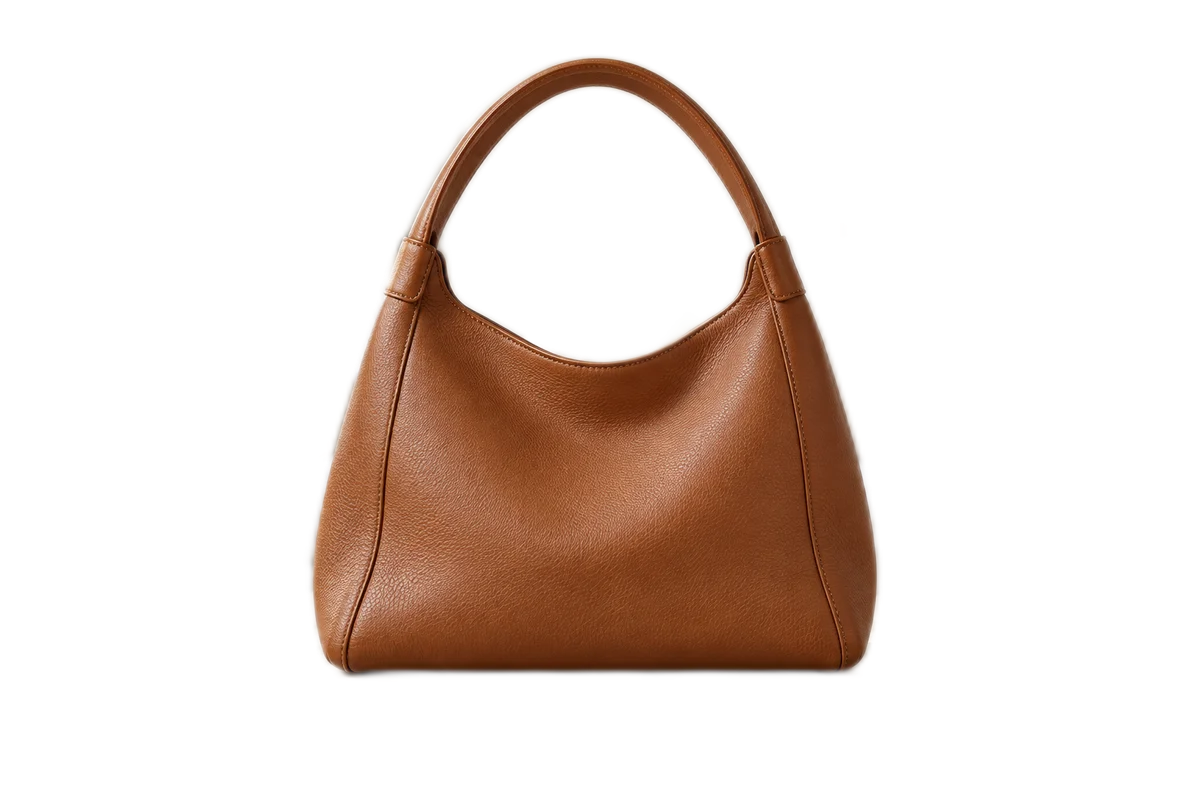
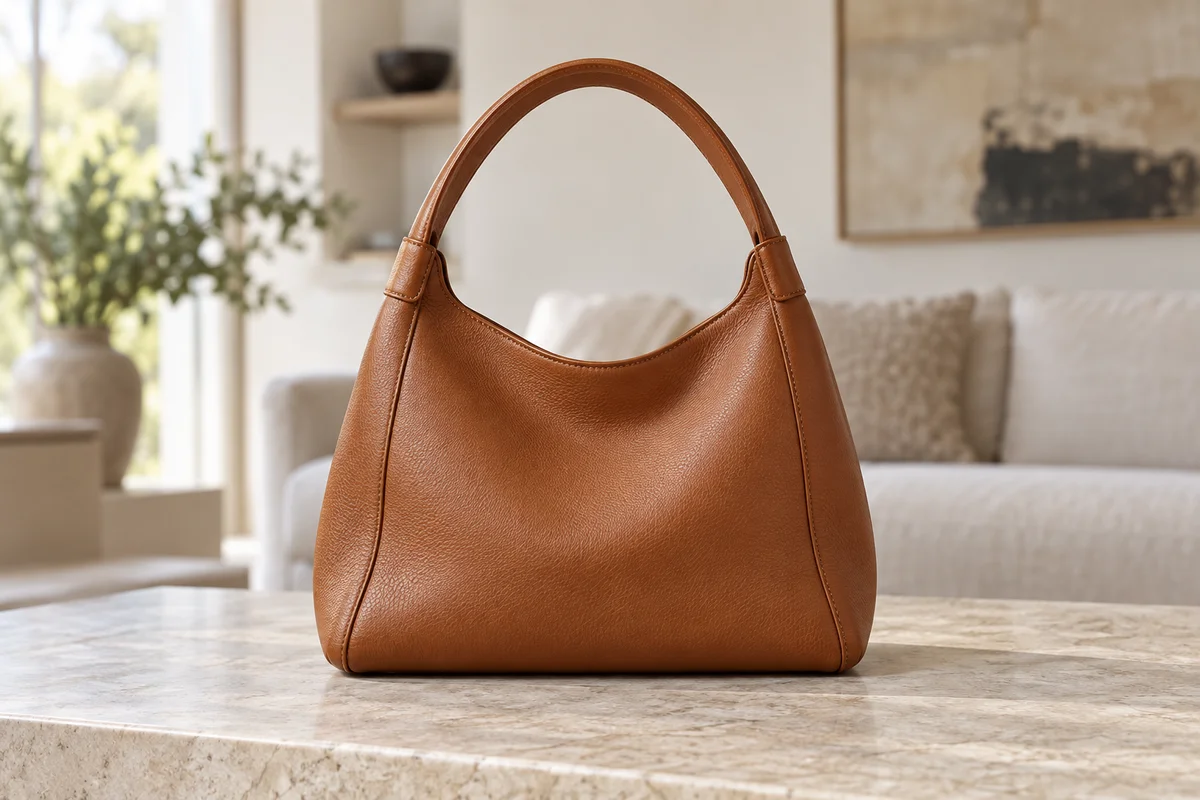
Choose a photo with a clear subject. Portraits, products and everyday objects are a good place to start.
Review the cutout against transparency or a solid color. Add a background photo for a different setting.
Save the PNG to your device and use it in a listing, presentation or your next design.
Remove distracting surroundings and place your product on a clean white background.
Prepare a cutout for a profile, a presentation or a new composition. Check fine hair against a contrasting color.
Create transparent assets for social posts and layouts, then build on them with Panify’s image tools.
Your browser downloads a lightweight model and processing files (about 16 MB). These can be cached for future visits. Use an updated browser; older phones may be slower or run out of memory. There is no automatic server fallback.
No. Choose an image, remove the background and download right here. Processing runs on your device, without server queues or processing quotas.
Choose a still JPEG, PNG or WebP image up to 10 MB and 16 million pixels. Animated images are not supported. Results are downloaded as PNG at the original dimensions.
Automatic removal works best with a clear foreground subject. Fine hair, glass, shadows and low-contrast edges can need further editing. Review the result before using it.
Your original photo, background photos and result all stay in your browser. Only the processing software and model are downloaded. The model may be cached locally, but your photos are not added to that cache or uploaded to Panify.
Yes. Choose Transparent before downloading PNG. You can also select white, another color or your own background photo.
Explore image models for your next idea. Image generation uses the signed-in Studio.